
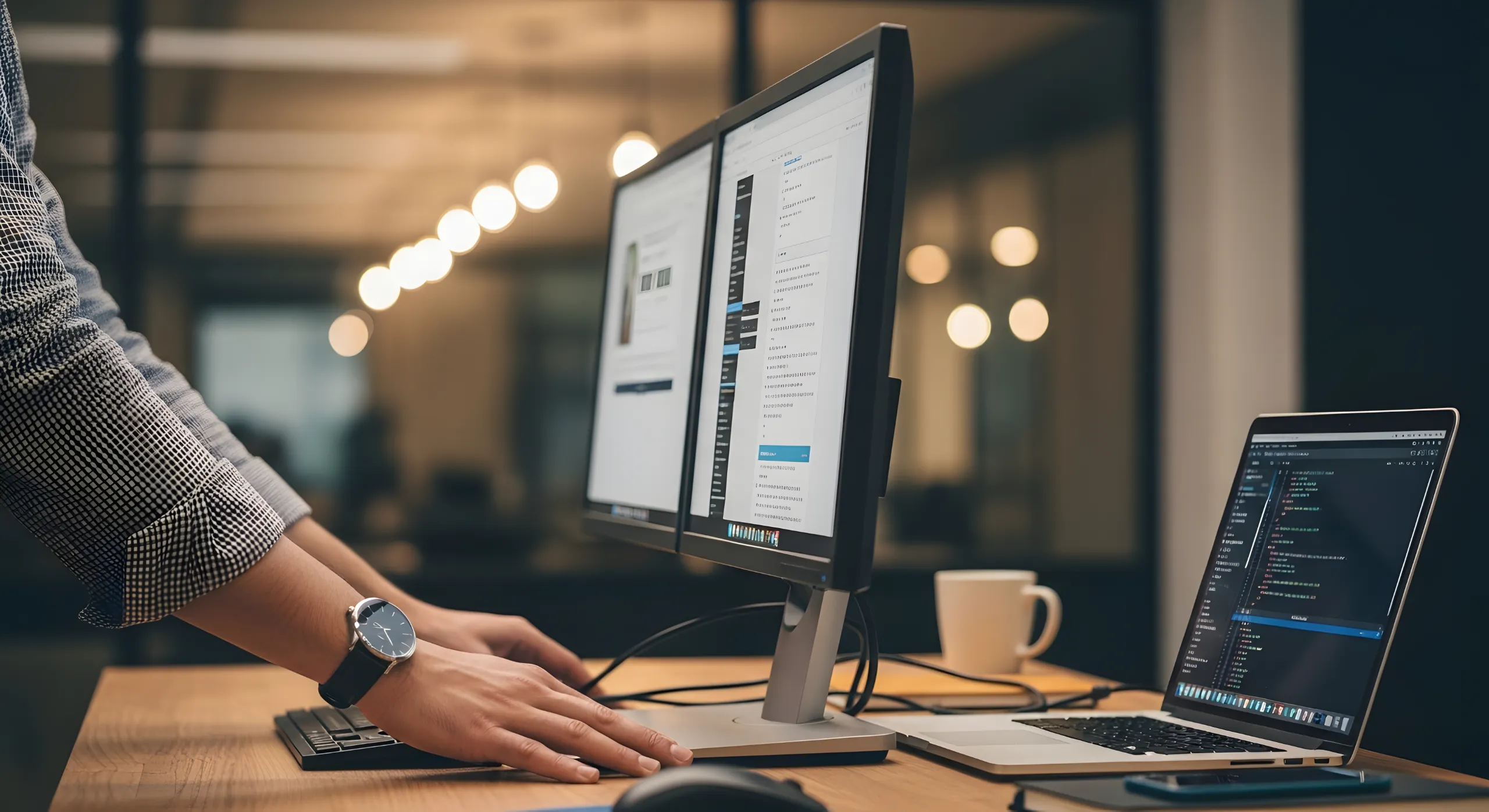

Computers have become an essential part of modern life. From education and business to communication and entertainment, computers are used in almost every aspect of our daily activities. Whether you want to apply for jobs, attend online classes, manage personal finances, or simply browse the internet, learning computer basics is an important first step.
This comprehensive beginner’s guide explains the fundamental concepts of computers, their components, how they work, and the essential skills every new computer user should know.
What Is a Computer?
A computer is an electronic device that receives data, processes it according to instructions, stores information, and produces useful results. Computers perform calculations, organize data, communicate over networks, and run software applications.
Computers can perform millions of calculations every second, making them valuable tools for work, education, research, healthcare, engineering, entertainment, and many other fields.
Why Learning Computer Basics Is Important
Understanding computers provides many advantages, including:
- Improves digital literacy
- Enhances job opportunities
- Supports online learning
- Makes communication easier
- Increases workplace productivity
- Helps manage personal finances
- Develops problem-solving skills
- Provides access to information worldwide
Today, basic computer knowledge is considered an essential life skill.
Types of Computers
Computers come in different forms, each designed for specific purposes.
Desktop Computers
Desktop computers are designed to remain in one location, such as a home or office. They usually consist of:
- Monitor
- System unit (computer case)
- Keyboard
- Mouse
Desktop computers are powerful and easy to upgrade.
Laptop Computers
Laptops combine all computer components into a portable device.
Advantages include:
- Lightweight
- Rechargeable battery
- Easy to carry
- Suitable for students and professionals
Tablet Computers
Tablets use touchscreens instead of traditional keyboards.
Common uses include:
- Reading books
- Watching videos
- Browsing the internet
- Online learning
Smartphones
Modern smartphones are powerful handheld computers capable of:
- Internet browsing
- Video calls
- Photography
- Banking
- Gaming
Servers
Servers are specialized computers that provide services to other computers over a network.
Examples include:
- Website hosting
- Email services
- Cloud storage
- Database management
Main Parts of a Computer
Every computer consists of hardware and software.
Hardware
Hardware refers to the physical components you can see and touch.
Examples include:
- Monitor
- Keyboard
- Mouse
- Processor
- Memory
- Hard drive
- Speakers
- Printer
Software
Software consists of programs and applications that tell the computer what to do.
Examples include:
- Operating systems
- Word processors
- Web browsers
- Games
- Antivirus programs
Hardware cannot function effectively without software.
Understanding Computer Hardware
Monitor
The monitor displays text, images, videos, and applications.
Modern monitors use technologies such as:
- LCD
- LED
- OLED
Keyboard
The keyboard allows users to enter text, numbers, and commands.
Common keyboard sections include:
- Alphabet keys
- Number keys
- Function keys
- Arrow keys
- Numeric keypad
Mouse
A mouse controls the pointer on the screen.
Common mouse actions include:
- Click
- Double-click
- Right-click
- Drag and drop
- Scroll
Central Processing Unit (CPU)
The CPU is often called the brain of the computer.
It performs calculations and executes instructions.
A faster CPU allows applications to run more efficiently.
Random Access Memory (RAM)
RAM stores temporary information while programs are running.
More RAM generally allows:
- Faster multitasking
- Better performance
- Smoother application use
Storage Devices
Storage saves files permanently.
Common storage devices include:
Hard Disk Drive (HDD)
Offers large storage capacity at a lower cost.
Solid State Drive (SSD)
Provides:
- Faster startup
- Faster file access
- Better durability
- Improved overall performance
Motherboard
The motherboard connects all computer components.
It allows communication between:
- CPU
- RAM
- Storage
- Graphics card
- Peripheral devices
Power Supply Unit (PSU)
The PSU converts electricity from the wall outlet into power that computer components can use safely.
Understanding Software
Software is divided into two main categories.
System Software
System software manages the computer’s hardware.
Examples include:
- Windows
- macOS
- Linux
- Android
- ChromeOS
Application Software
Application software performs specific tasks.
Examples include:
- Microsoft Word
- Microsoft Excel
- Microsoft PowerPoint
- Google Chrome
- Mozilla Firefox
- Adobe Acrobat Reader
- VLC Media Player
Operating Systems
An operating system (OS) is the software that controls the computer and allows applications to run.
Popular operating systems include:
- Microsoft Windows
- Apple macOS
- Linux
- Android
- iOS
The operating system manages:
- Files
- Hardware
- Memory
- Security
- User accounts
Understanding Files and Folders
A file stores information.
Examples include:
- Documents
- Photos
- Videos
- Music
- Spreadsheets
A folder organizes files into categories.
Example:
Documents
└── School
└── Assignments
└── Essay.docx
Keeping files organized makes them easier to find.
Input and Output Devices
Input Devices
Input devices send information to the computer.
Examples include:
- Keyboard
- Mouse
- Scanner
- Webcam
- Microphone
- Touchscreen
Output Devices
Output devices display or produce results.
Examples include:
- Monitor
- Printer
- Speakers
- Projector
- Headphones
Connecting to the Internet
The internet allows computers to communicate worldwide.
Common internet connection methods include:
- Wi-Fi
- Ethernet cable
- Mobile data
- Fiber internet
The internet is used for:
- Online learning
- Banking
- Shopping
- Social media
- Video conferencing
Web Browsers
A web browser allows access to websites.
Popular browsers include:
- Google Chrome
- Microsoft Edge
- Mozilla Firefox
- Safari
- Opera
Web browsers allow users to:
- Search information
- Watch videos
- Download files
- Read news
- Access online services
Email Basics
Email is one of the most important communication tools.
A typical email includes:
- Recipient
- Subject
- Message
- Attachments
Email is commonly used for:
- Job applications
- Business communication
- School assignments
- Customer support
Basic Keyboard Shortcuts
Learning keyboard shortcuts improves productivity.
Common shortcuts include:
| Shortcut | Function |
|---|---|
| Ctrl + C | Copy |
| Ctrl + V | Paste |
| Ctrl + X | Cut |
| Ctrl + Z | Undo |
| Ctrl + S | Save |
| Ctrl + P | |
| Ctrl + A | Select all |
| Ctrl + F | Find |
| Alt + Tab | Switch between applications |
Computer Safety Tips
Protect your computer by following these practices:
- Use strong passwords
- Install antivirus software
- Update software regularly
- Back up important files
- Avoid suspicious email attachments
- Download software only from trusted sources
- Lock your computer when away
- Avoid sharing personal information online
Good security habits reduce the risk of viruses and cyberattacks.
Common Computer Terms
Understanding common terminology makes learning easier.
CPU – Central Processing Unit
RAM – Temporary working memory
SSD – Solid State Drive
HDD – Hard Disk Drive
USB – Universal Serial Bus
Wi-Fi – Wireless internet connection
Browser – Software used to access websites
Download – Copying files from the internet to your device
Upload – Sending files from your device to the internet
Practical Computer Skills Every Beginner Should Learn
Every beginner should practice:
- Turning the computer on and off safely
- Using the keyboard and mouse
- Creating folders
- Saving documents
- Opening applications
- Connecting to Wi-Fi
- Browsing the internet
- Sending emails
- Printing documents
- Installing and uninstalling software responsibly
These skills form the foundation of computer literacy.
Common Beginner Mistakes
Avoid these common errors:
- Turning off the computer by unplugging it
- Ignoring software updates
- Saving files without remembering their location
- Clicking unknown links
- Using weak passwords
- Downloading software from untrusted websites
- Forgetting to back up important files
Developing good habits early helps prevent data loss and security issues.
Careers That Require Computer Skills
Basic computer knowledge is valuable in many professions, including:
- Administrative Assistant
- Data Entry Clerk
- Teacher
- Accountant
- Customer Service Representative
- Graphic Designer
- Software Developer
- Digital Marketer
- Office Administrator
- Healthcare Worker
- Banker
- Engineer
Almost every modern workplace requires at least basic computer skills.
Tips for Learning Computers Faster
To build confidence with computers:
- Practice using a computer every day.
- Learn one new skill at a time.
- Explore menus and settings safely.
- Practice typing regularly.
- Use educational websites and tutorials.
- Take notes on important shortcuts.
- Ask questions when you encounter problems.
- Stay patient and keep practicing.
Consistent practice is the best way to become comfortable using computers.
Frequently Asked Questions
What are computer basics?
Computer basics include understanding hardware, software, operating systems, file management, internet use, and essential computer skills needed for everyday tasks.
How long does it take to learn basic computer skills?
Most beginners can learn the fundamentals within a few weeks of regular practice. Becoming proficient depends on how often you use a computer.
Why are computer skills important?
Computer skills improve productivity, support education, increase employment opportunities, and make it easier to communicate and access information.
Can I learn computers without any previous experience?
Yes. With patience, regular practice, and step-by-step learning, anyone can develop strong computer skills regardless of age or background.
Conclusion
Computer Basics for Beginners provides the essential knowledge needed to confidently use computers in everyday life. By understanding computer hardware, software, operating systems, internet use, file management, and digital safety, beginners can build a strong foundation for personal, educational, and professional success.
Technology continues to evolve, but mastering the basics ensures that you are prepared to learn new tools and adapt to changing digital environments. Whether you are using a computer for work, study, communication, or entertainment, these core skills will serve you for years to come.
Final Thoughts
Thank you for reading this comprehensive guide on Computer Basics for Beginners. Continue practicing your skills, explore new applications, and stay curious about technology. Building confidence with computers takes time, but every new skill you learn brings you closer to becoming a capable and independent computer user.
